AITM User Interface — UI Screenshots
A visual tour of AITM's key components and workflows.
📊 Core Dashboard & Task Management

Pipeline Task Dashboard
Real-time status of active pipeline tasks with the live queue and execution progress.

Task Execution Detail
Step-by-step pipeline progress of one task with logs and timing.
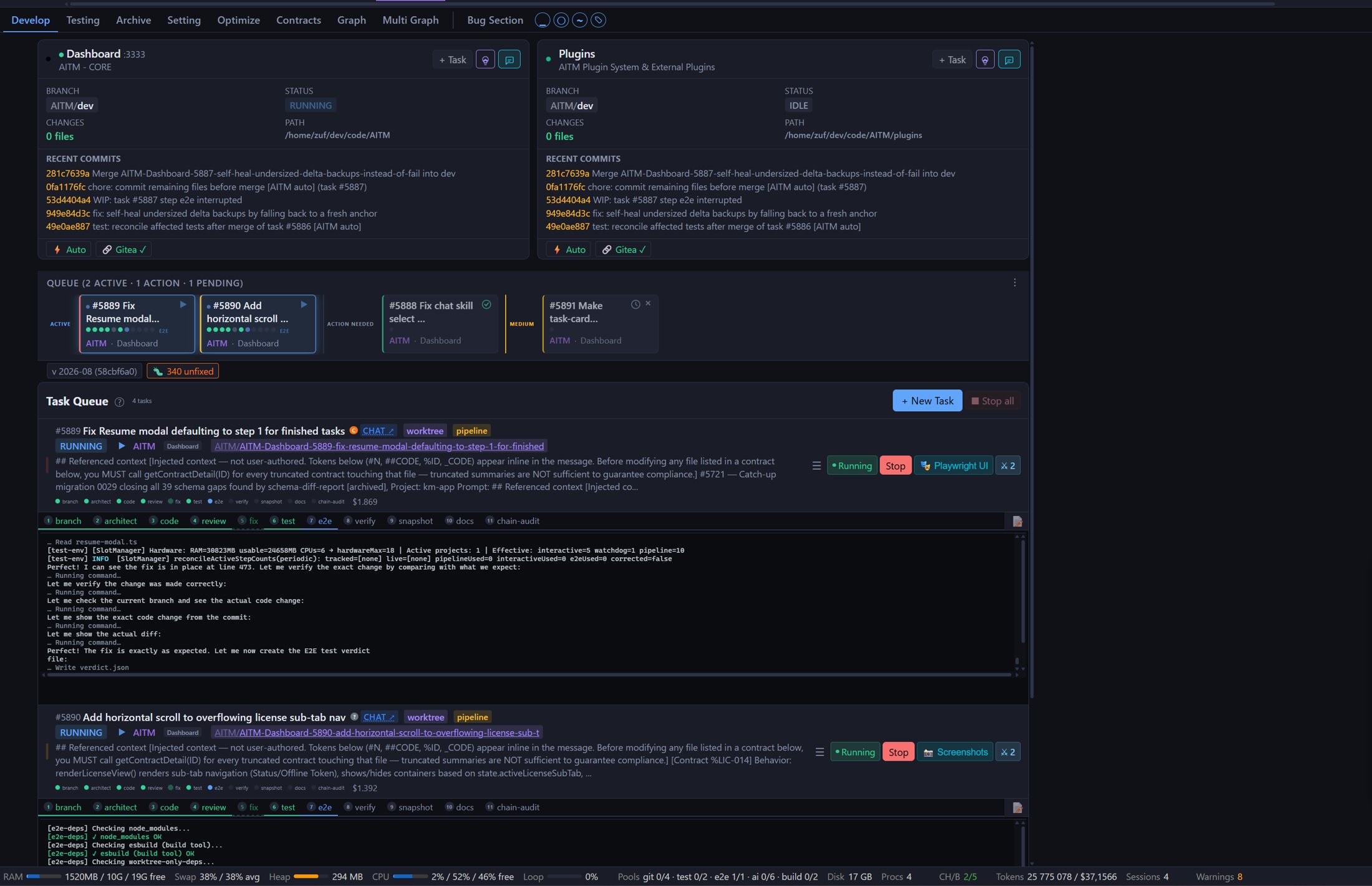
Develop View — Pipeline Running
The Develop view while a task moves through the pipeline steps.
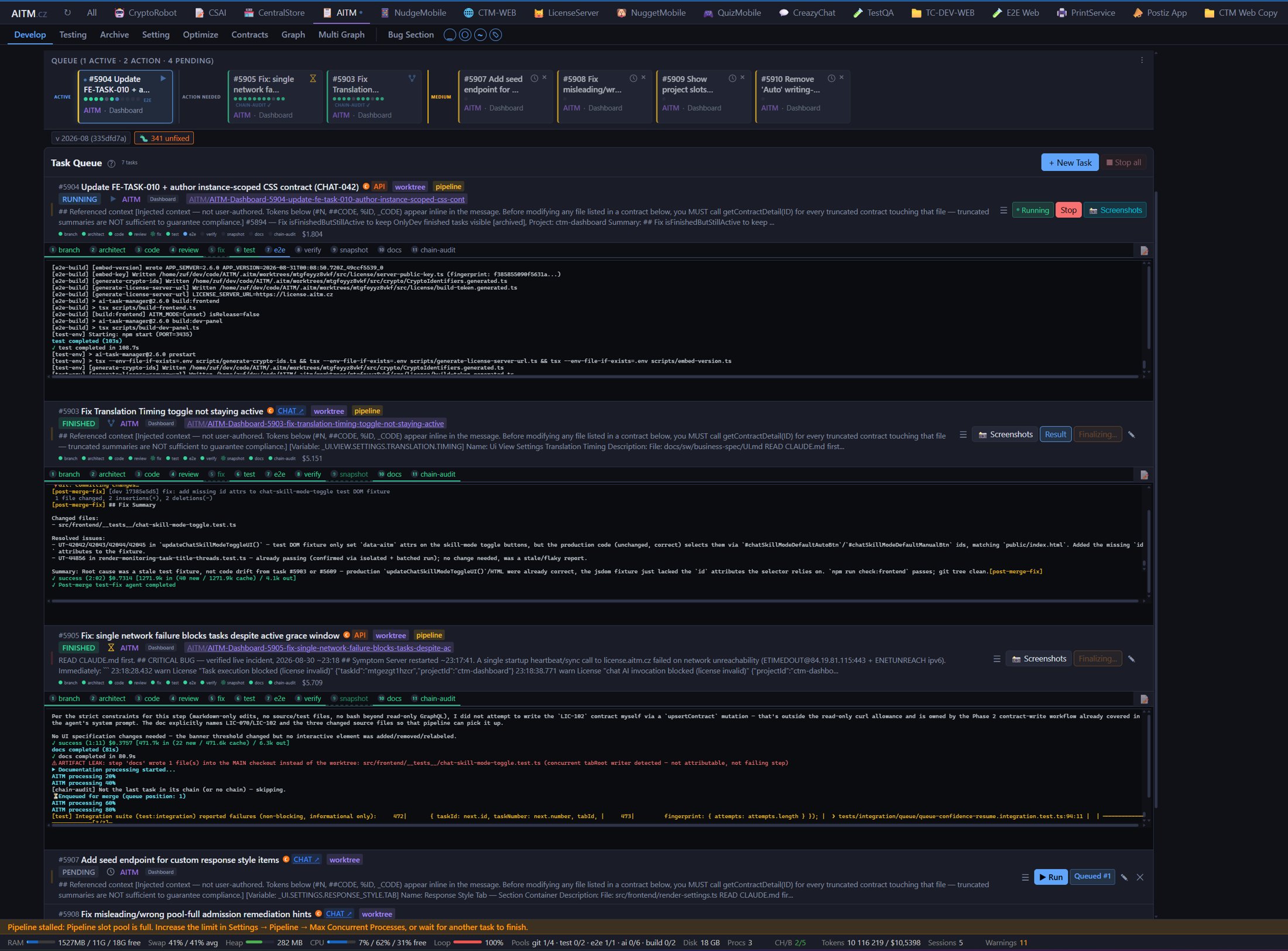
Pipeline Finalizing a Task
A task in its last steps, just before it is merged into dev and archived.
📝 New Task
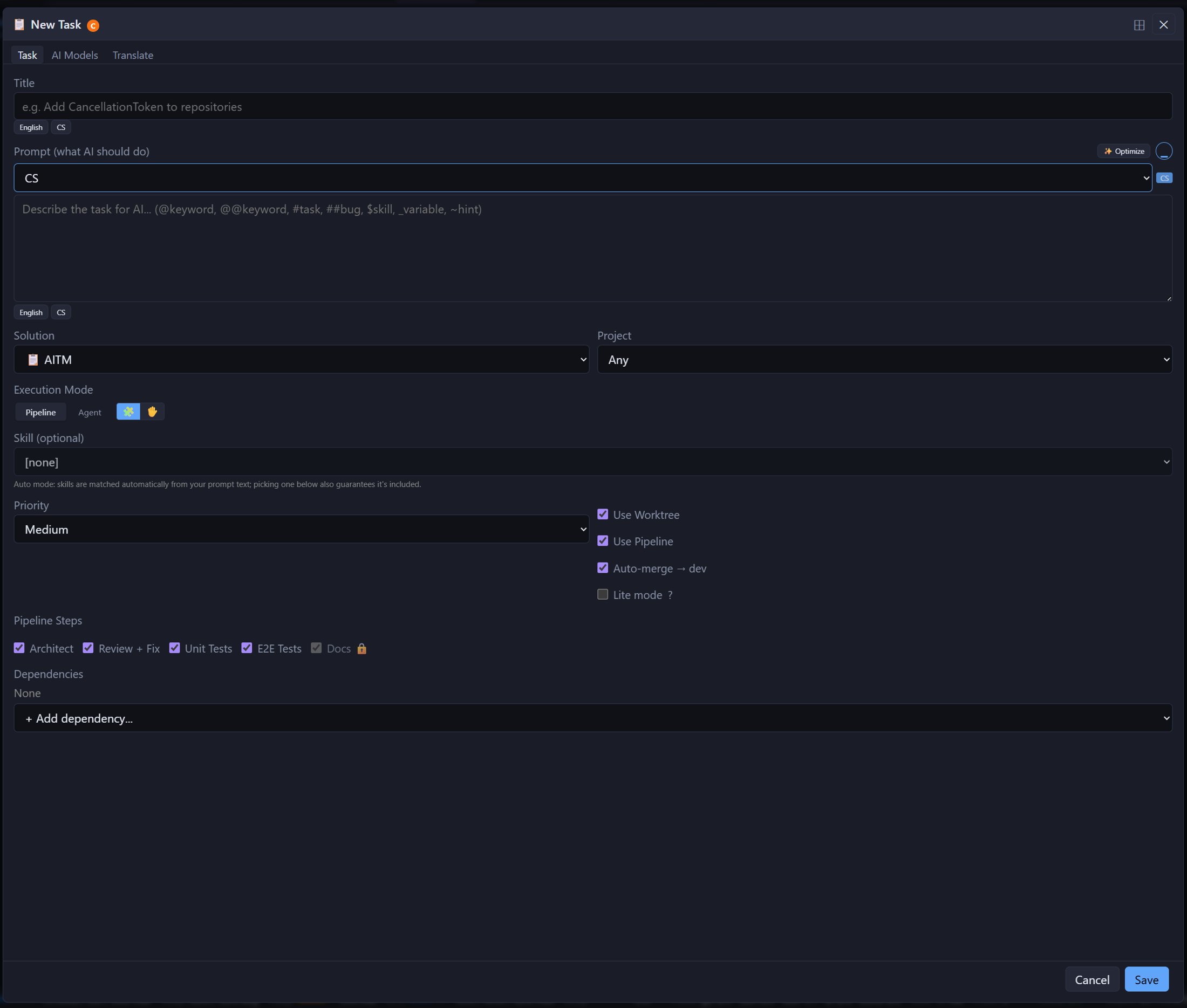
New Task — Task Tab
Title, prompt with Optimize, execution mode, skill, priority, intent, the worktree / pipeline / auto-merge / Lite switches and per-task pipeline steps.
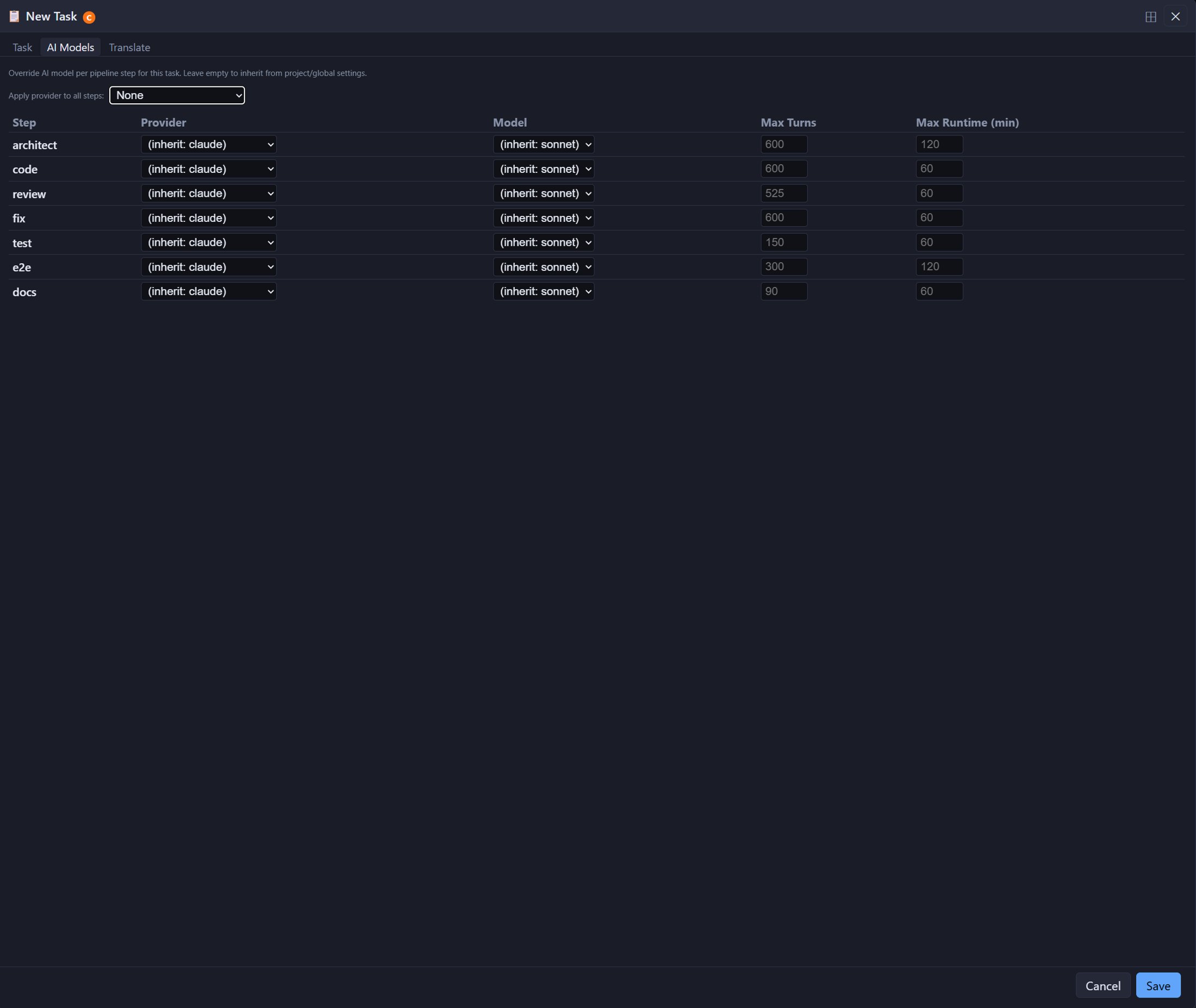
New Task — AI Models Tab
Per-task override of provider, model and limits for every AI step.
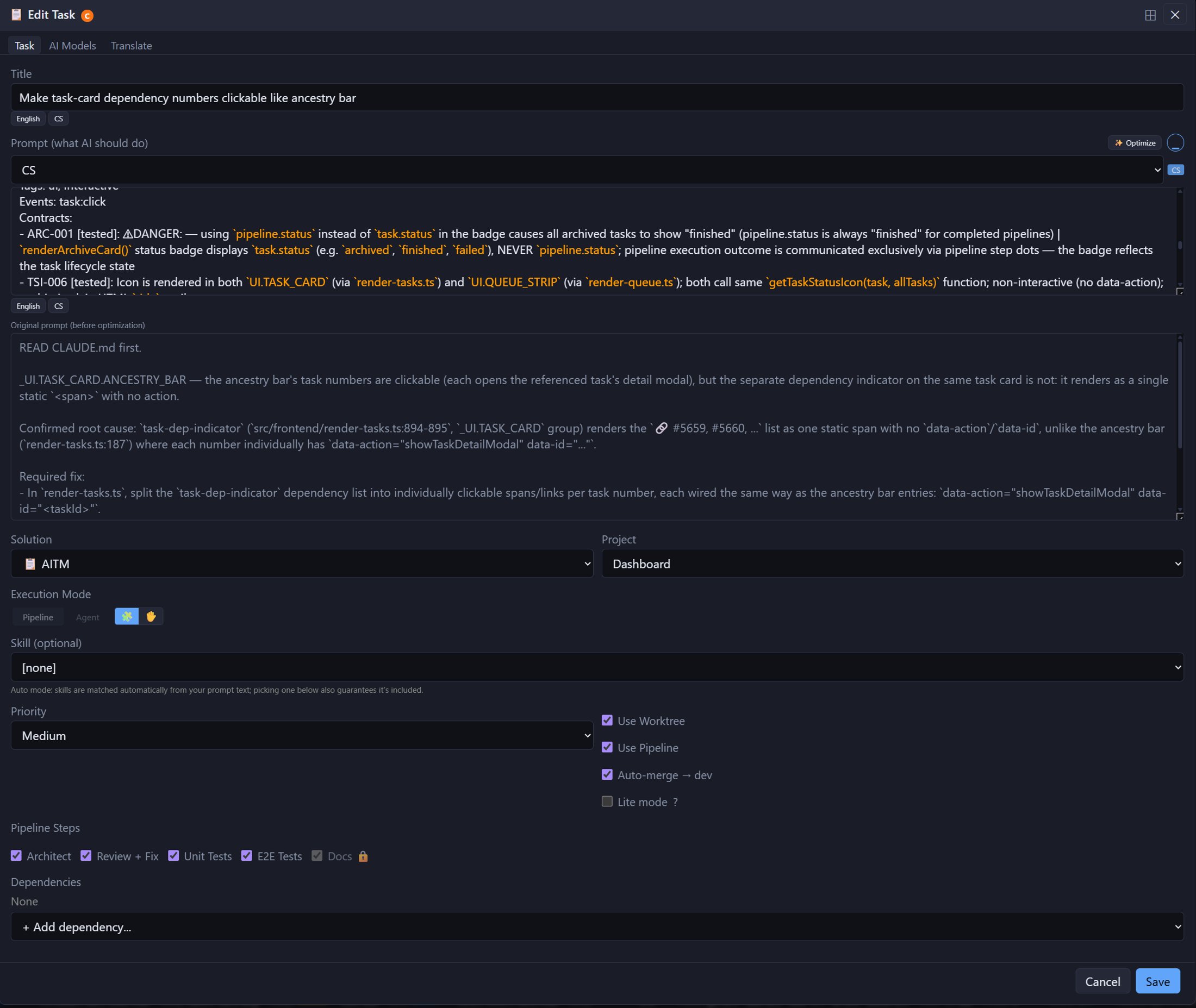
Editing a Task
The same dialog opened as Edit Task, filled with the values of an existing task.
💬 AI Chat & Brainstorming

Chat Interface
Multi-turn conversations with the AI, with history, model selection and task creation from chat.
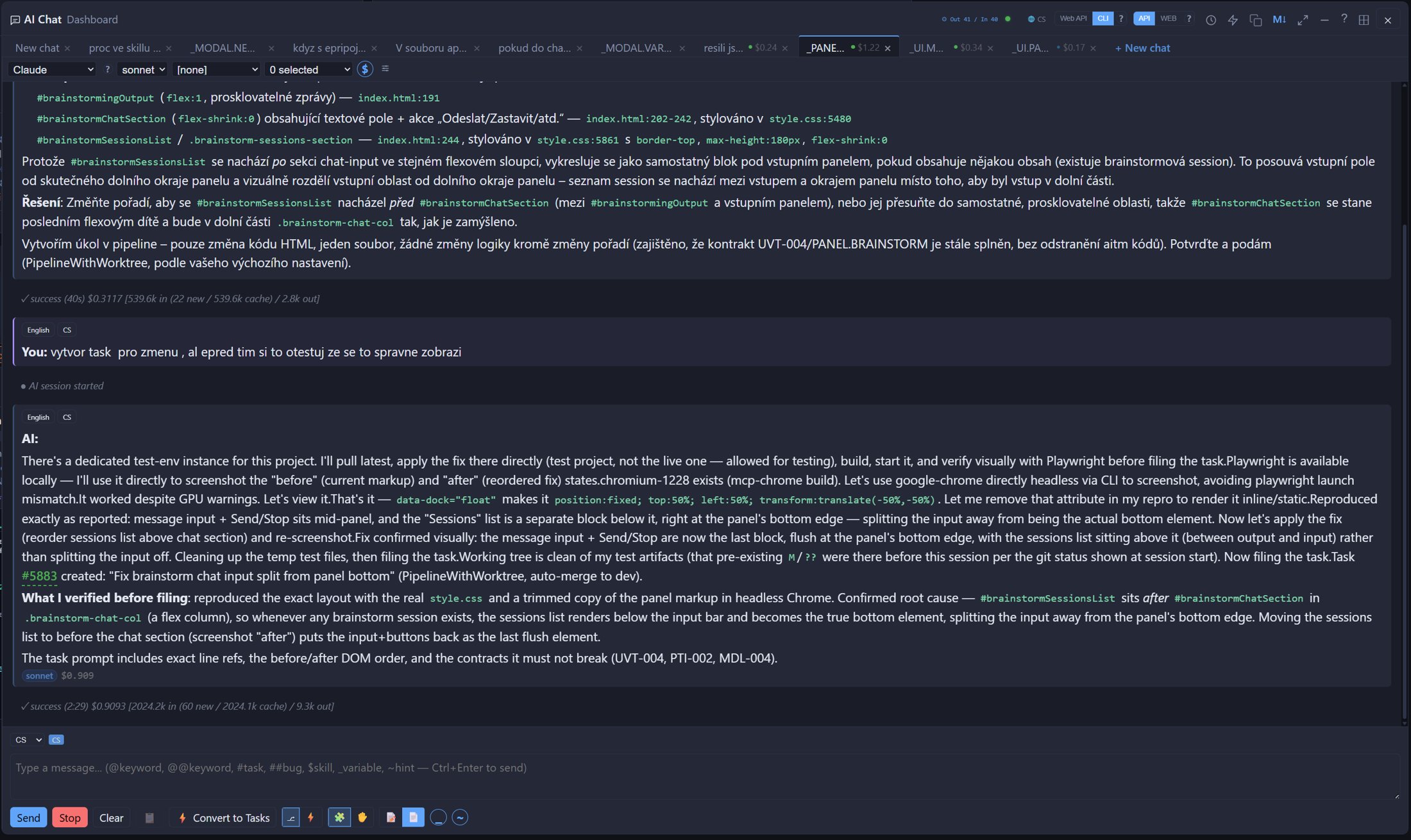
Chat Window
Conversation tabs, provider / model / skill selectors, the Web API / CLI toggle and the Convert to Tasks button.
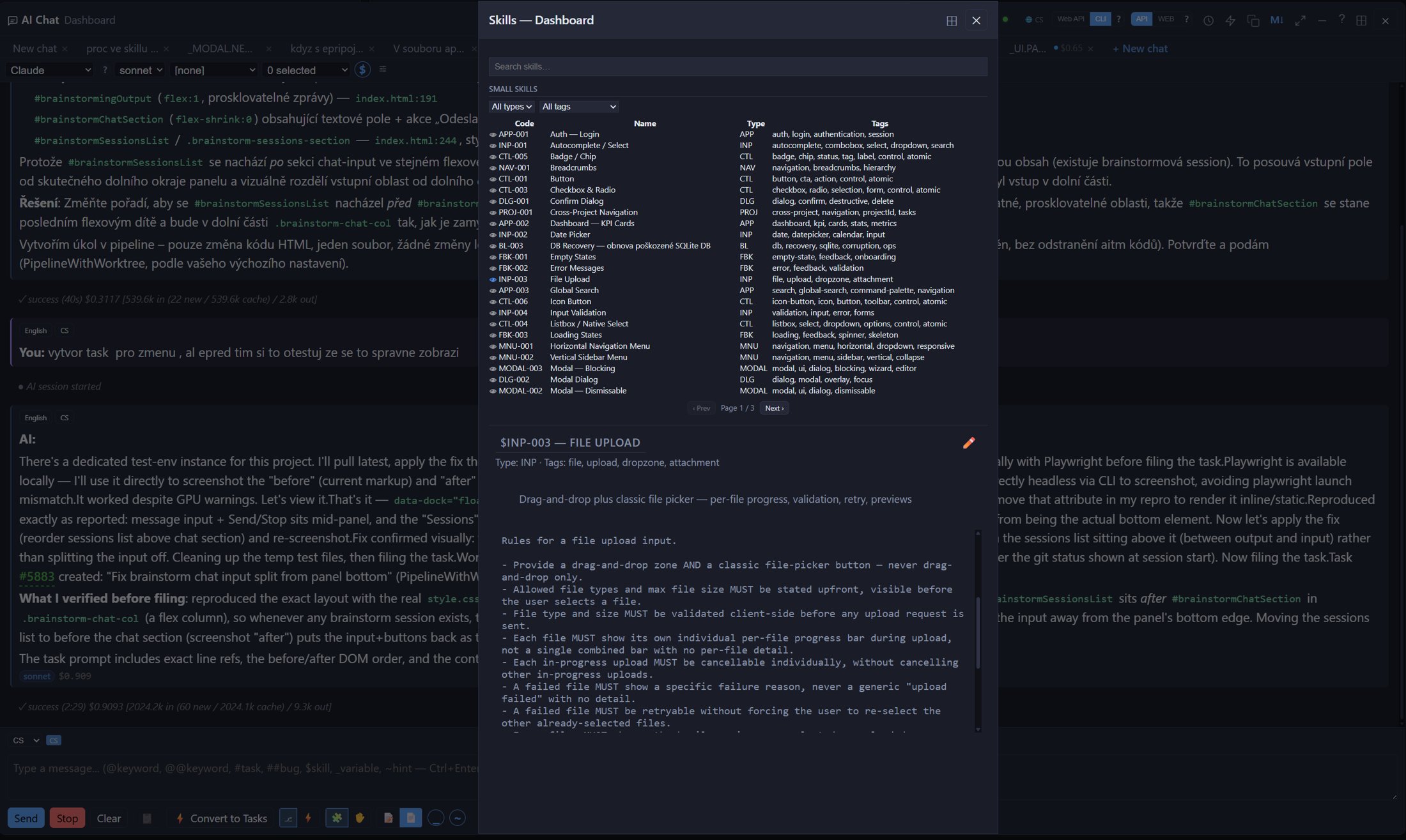
Skills Picker
Search skills, filter them by type and tag, and preview the full text before using one.
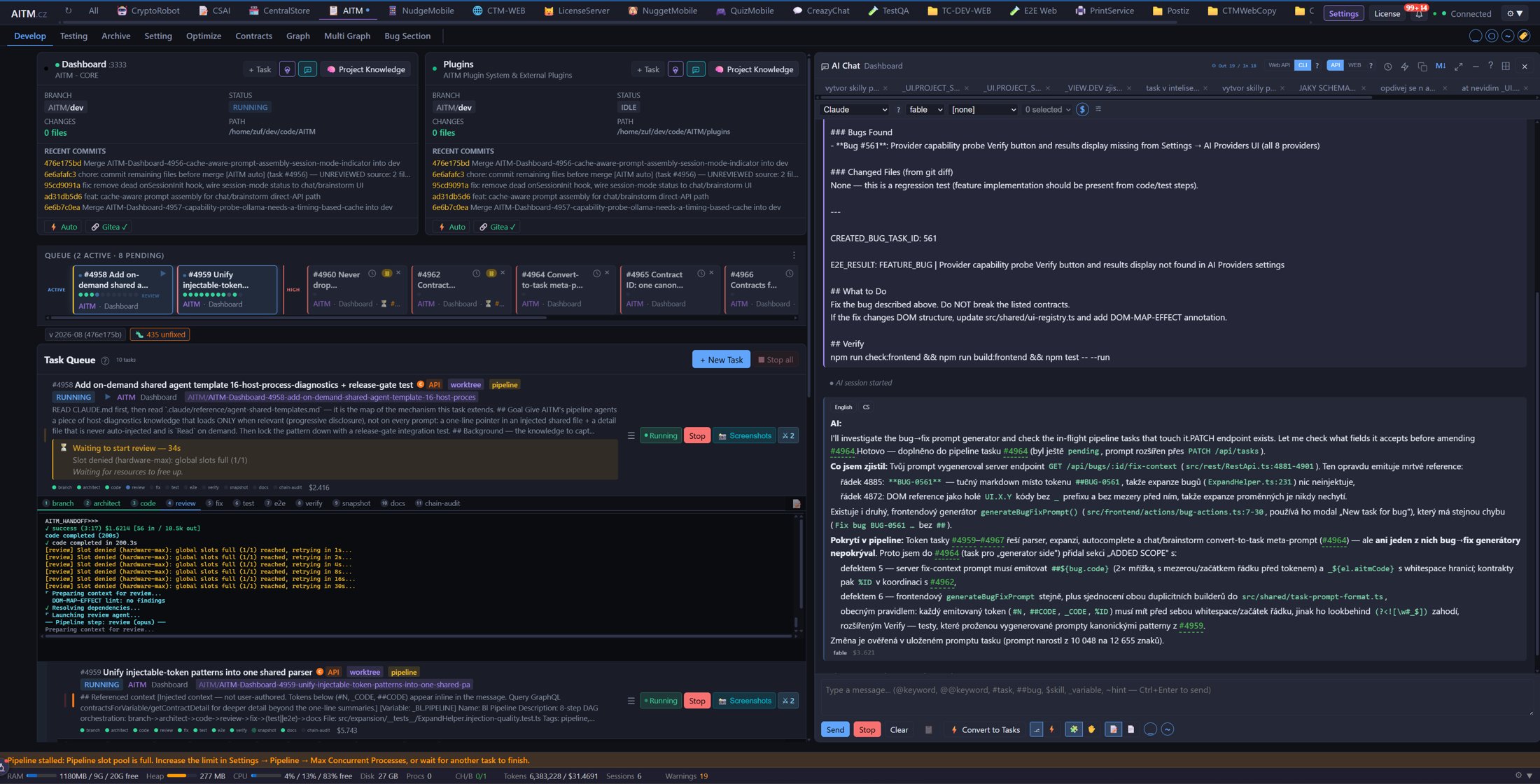
Chat Docked Beside the Pipeline
Keep chatting while you watch tasks run — the window docks left, right, top or bottom.

Brainstorm with Contract Preview
Planning conversation with clickable contract references and a contract preview.
⚙️ Project Configuration & Settings

Project Settings — AI Configuration
Project-level settings: AI provider and model overrides per pipeline step for this one project.

Project Settings — Hint Dictionary
Per-project dictionary of hints you can insert into prompts by typing ~.
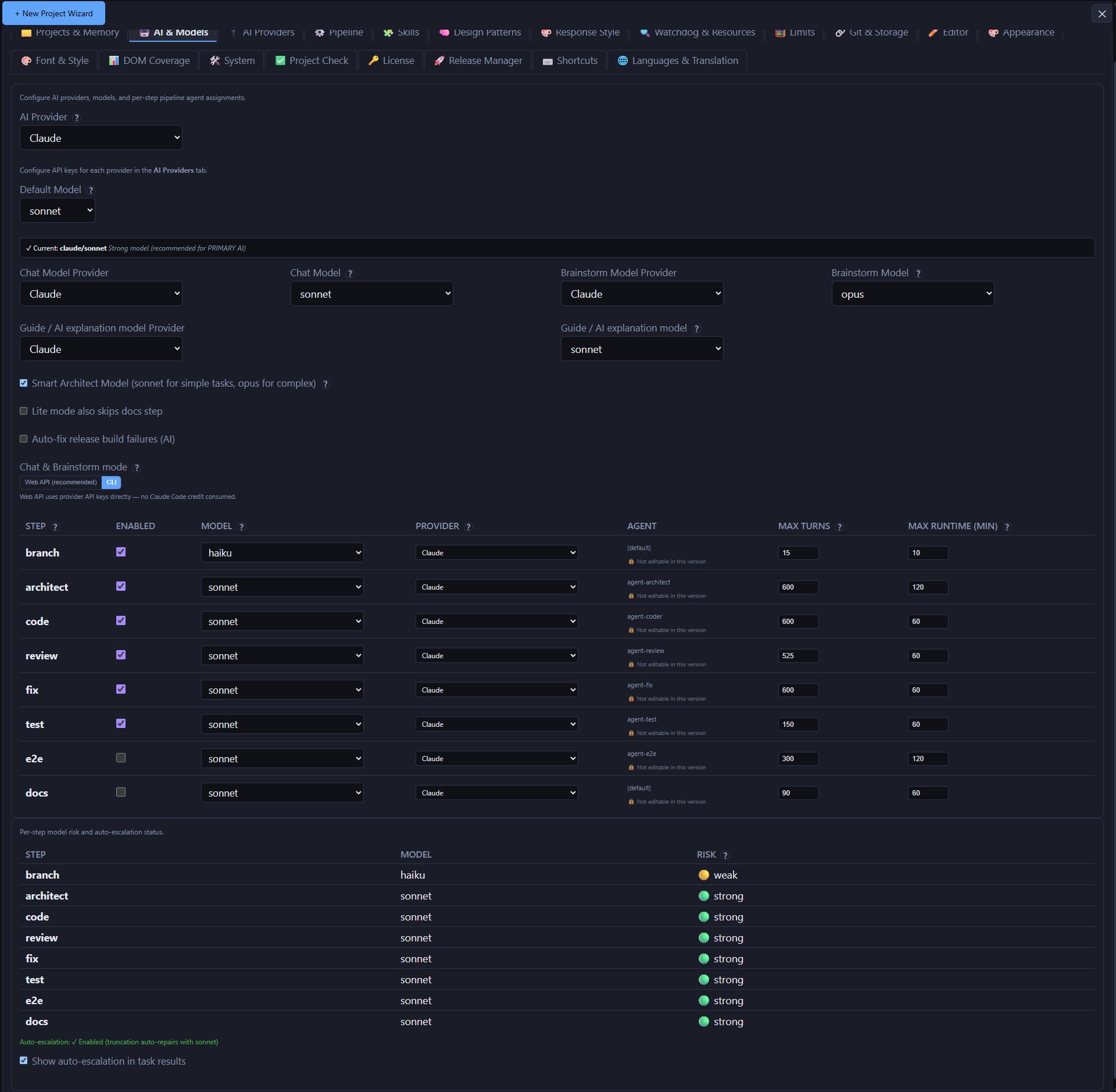
Settings — AI Models
Global default model for each pipeline step.
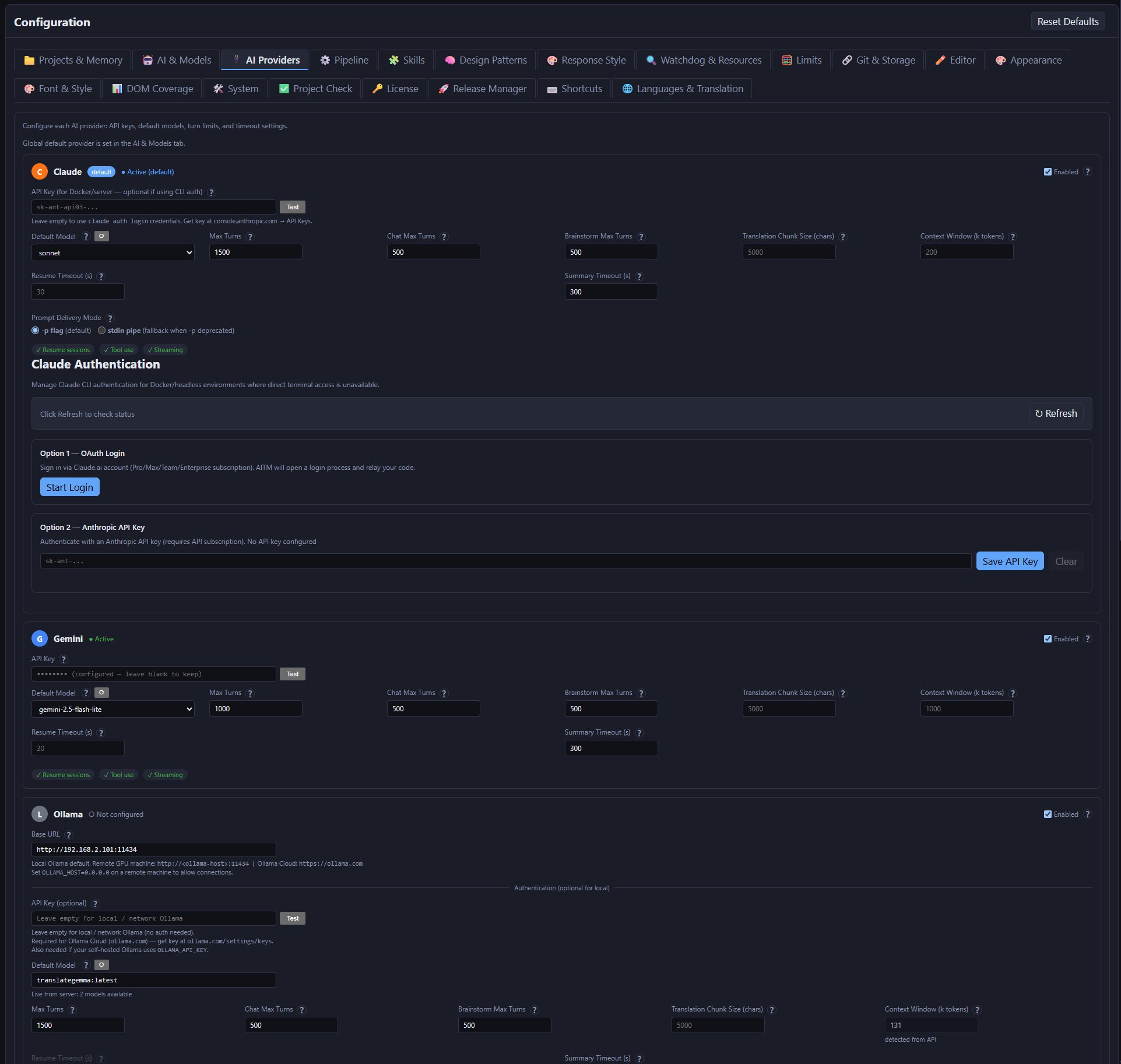
Settings — AI Providers
Configured AI providers and their credentials.
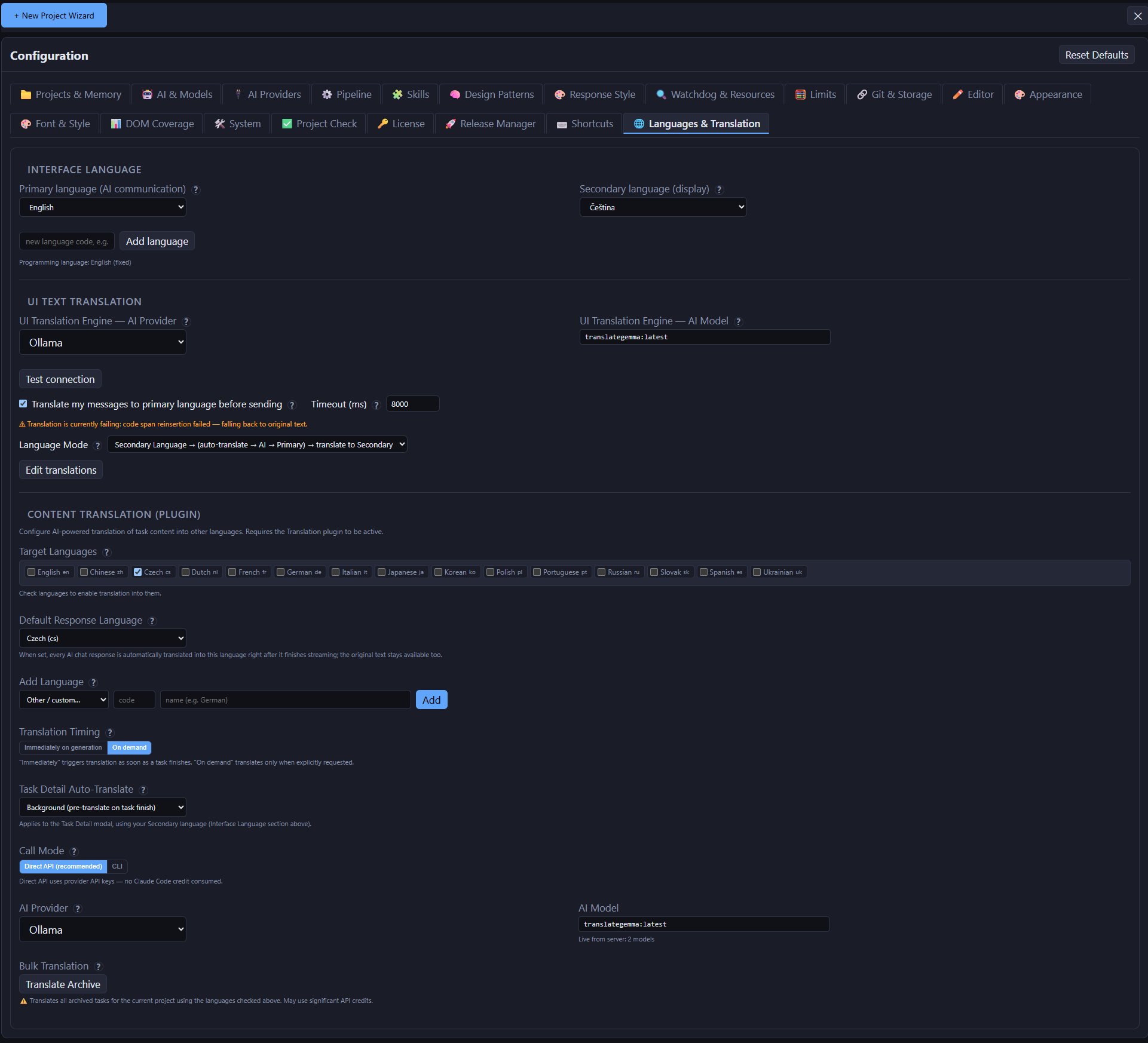
Settings — Language & Translation
Interface language and prompt translation options.
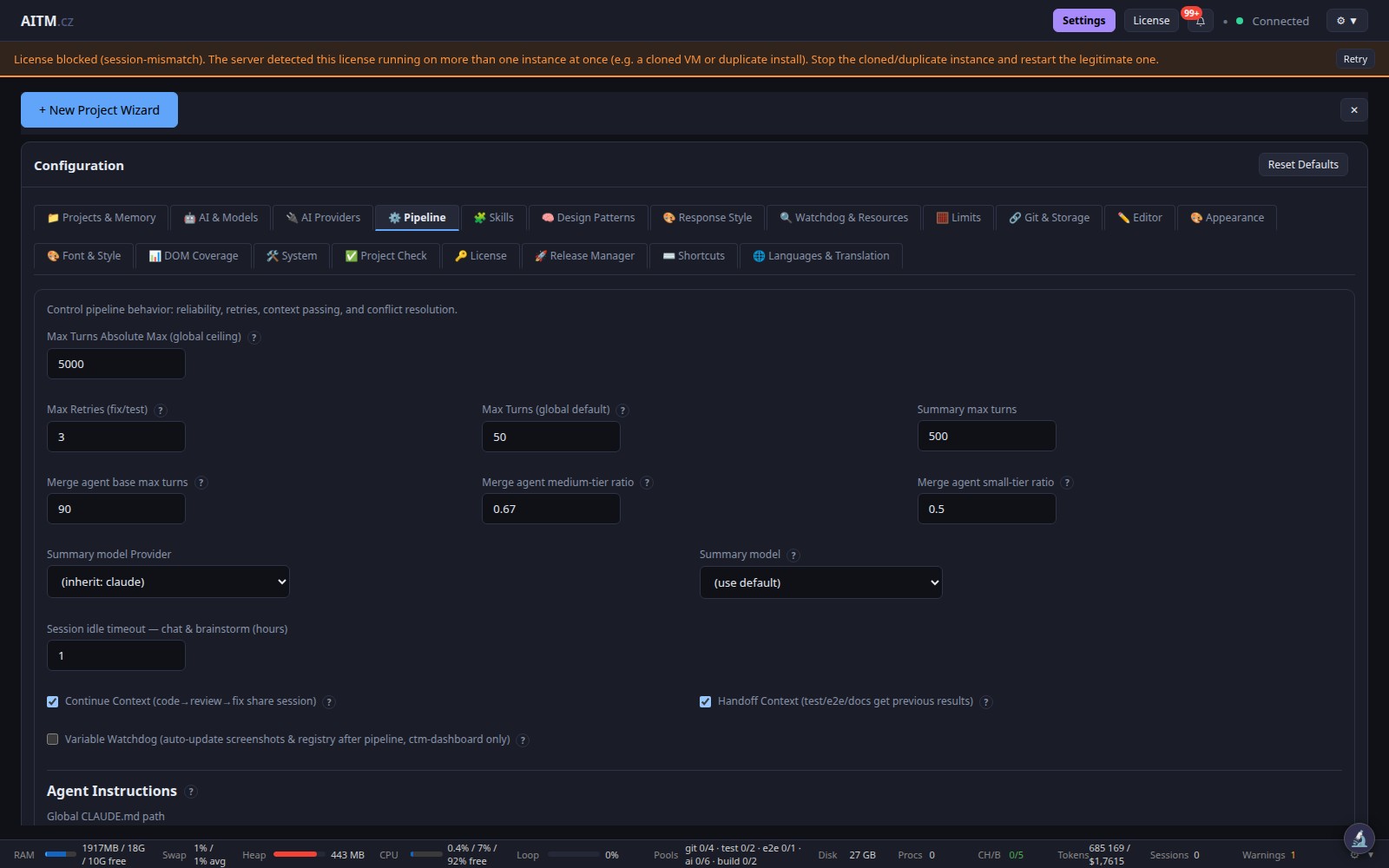
Settings — Pipeline
Pipeline behaviour, including Max concurrently running tasks.
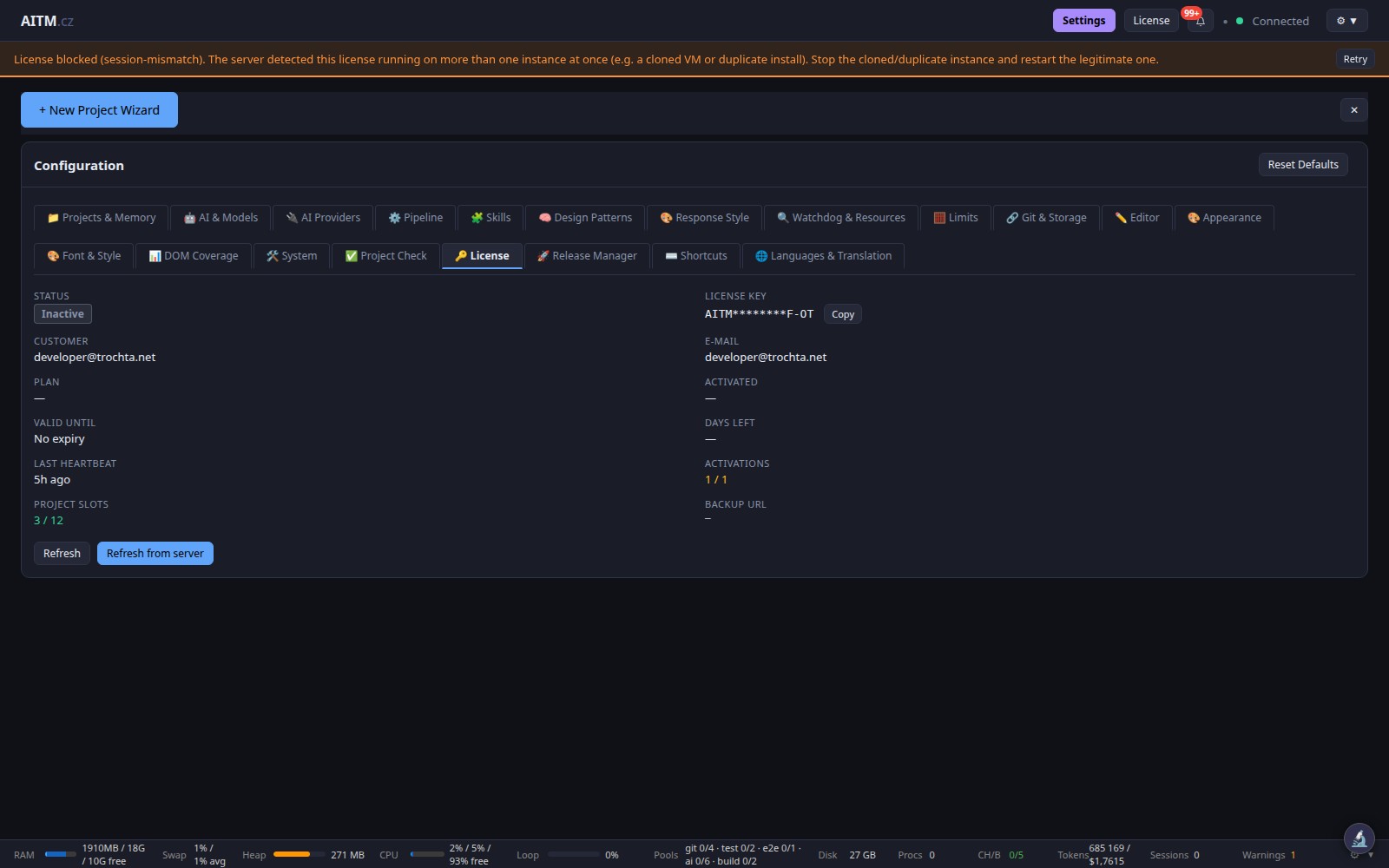
Settings — License
License status and project slots.
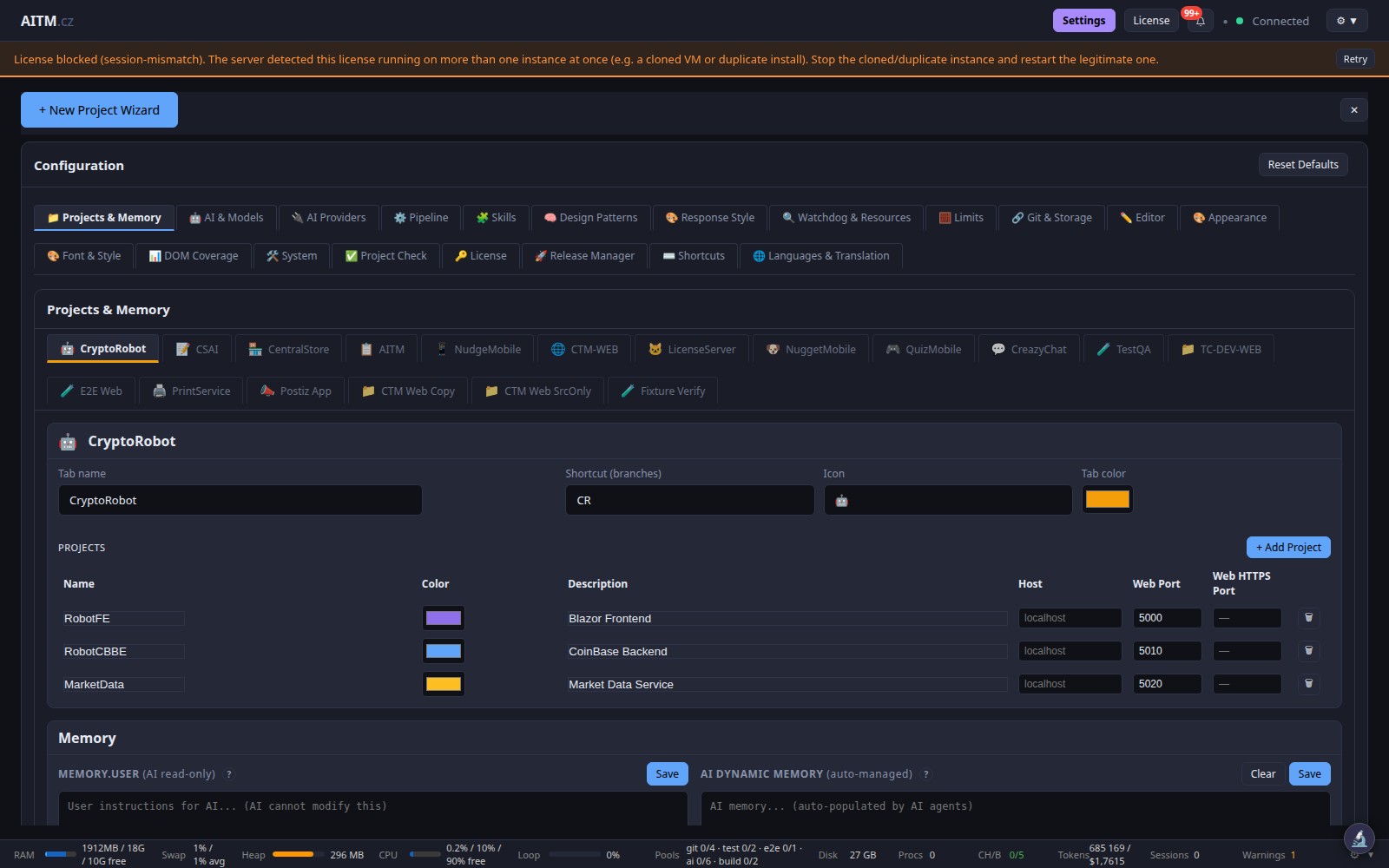
Settings — Projects
The projects AITM manages.
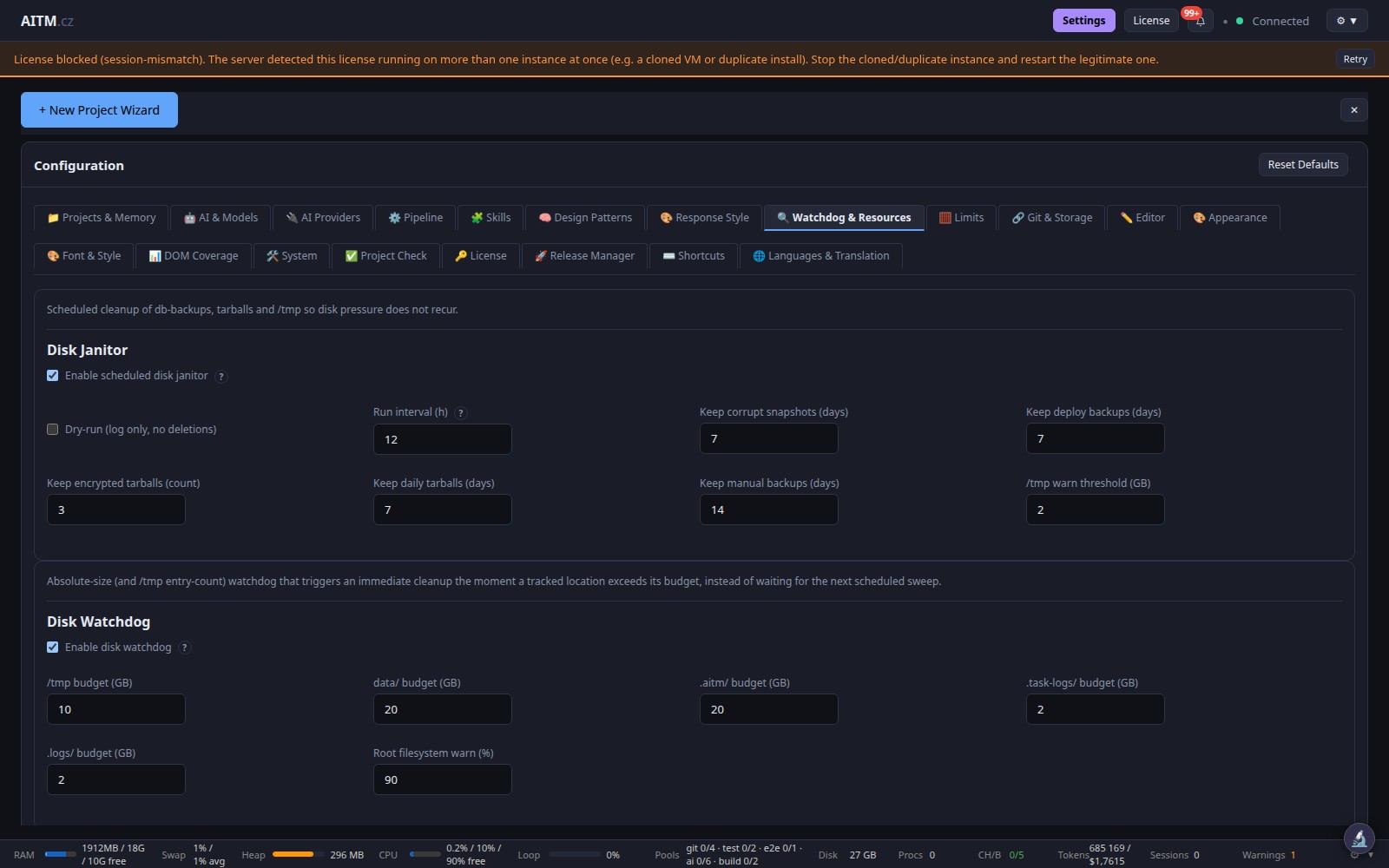
Settings — Watchdog & Resources
Watchdog recovery and the CPU / RAM resource guard.
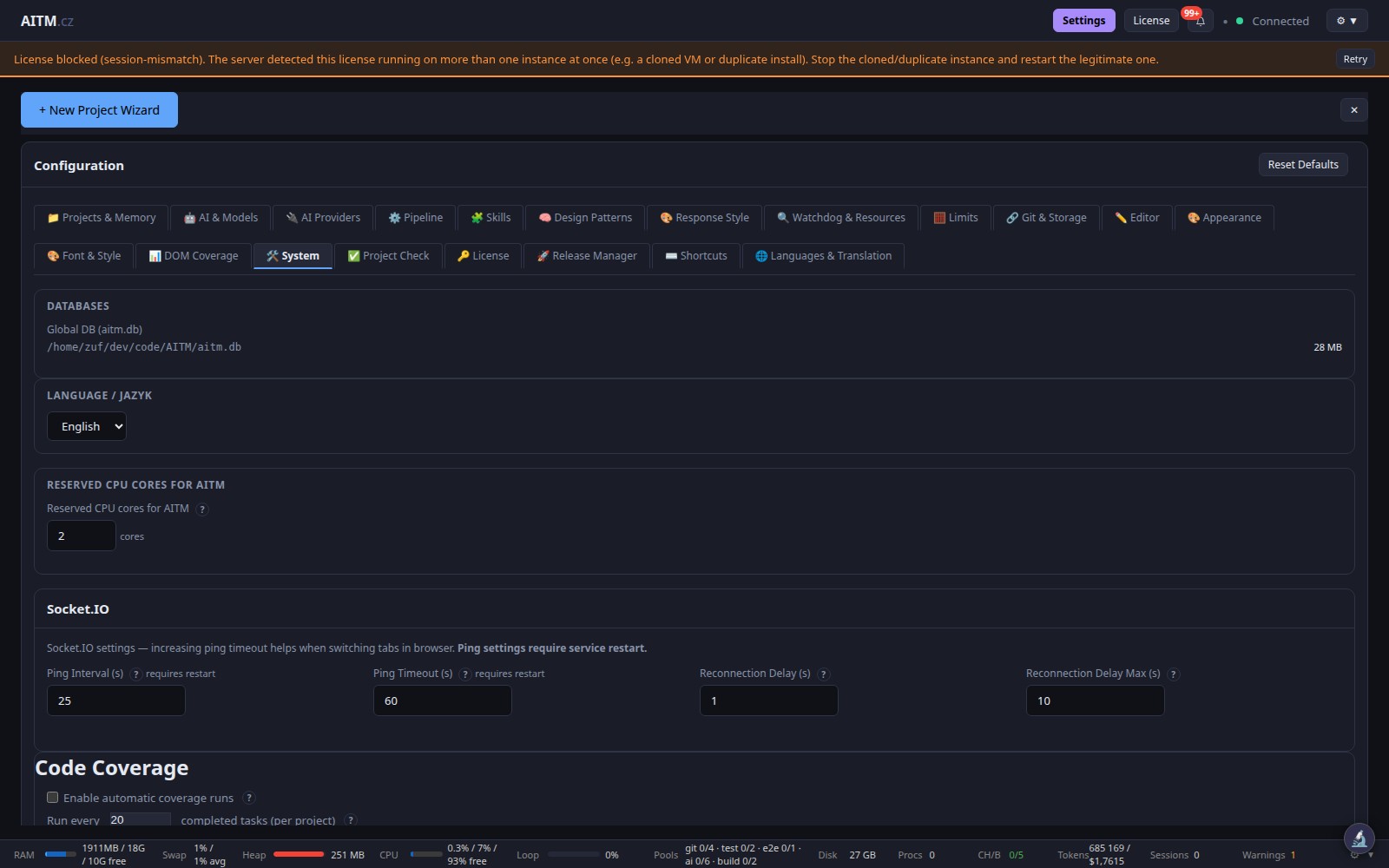
Settings — System
System-level options of the AITM server.
🧪 Testing & Quality Assurance

Test History Dashboard
Historical test results with trends and pass/fail metrics.
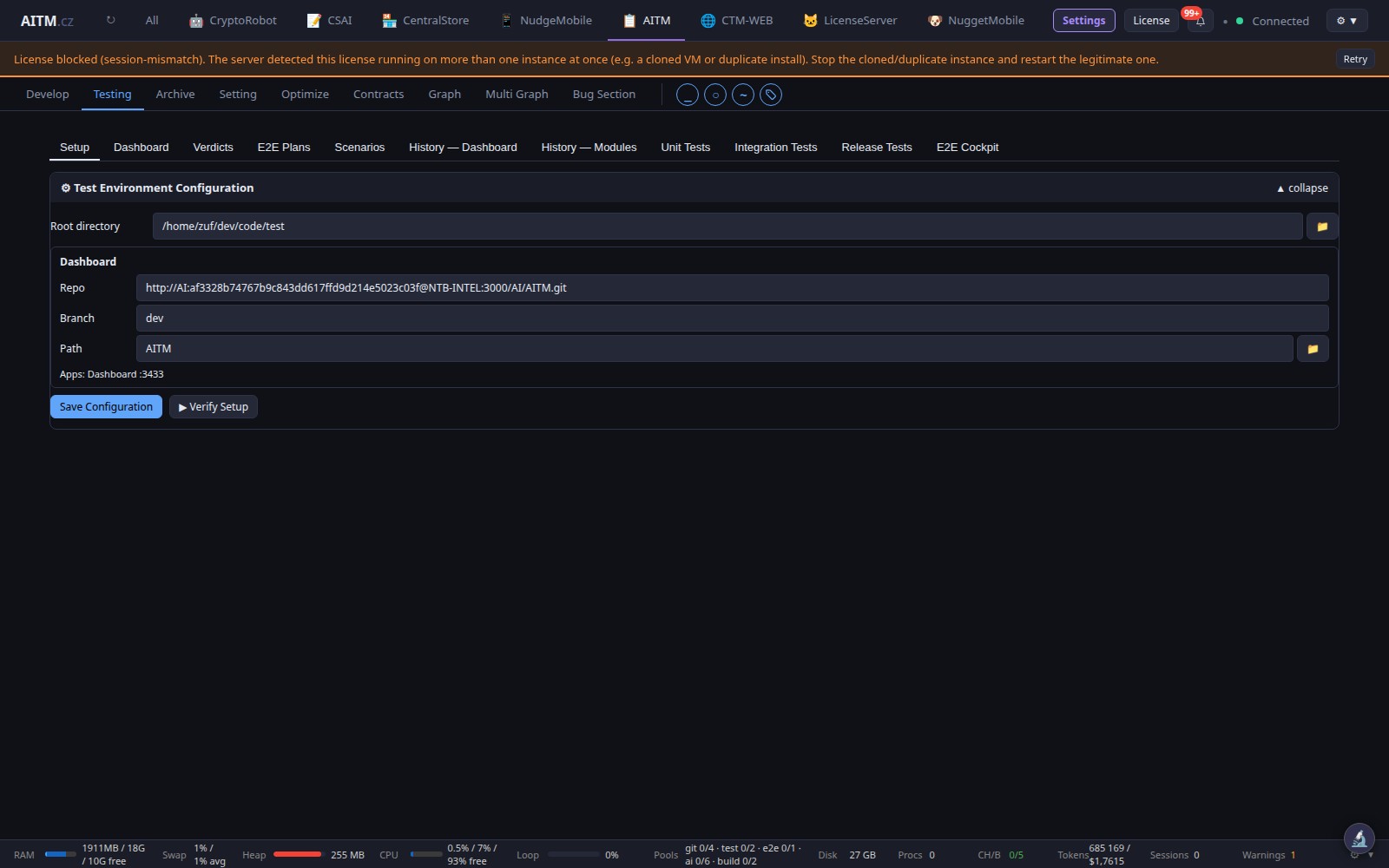
Testing View
The Testing view with its default History and Unit Tests tabs.
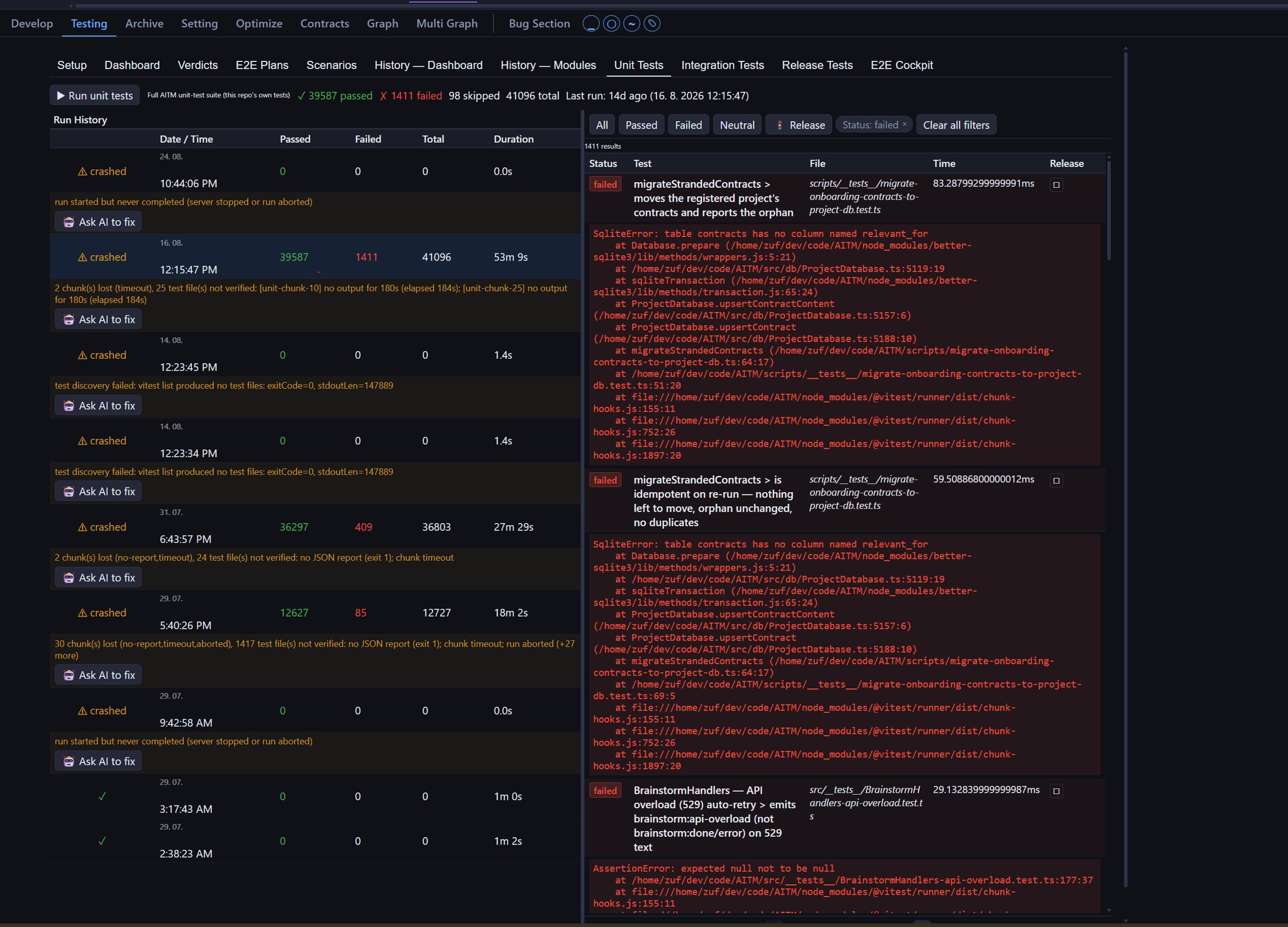
Unit Tests — Run History
Run history with the failed tests of the selected run.
📁 Task Results & Archive

Result Summary Modal
Summary, pipeline steps, changed files and logs of a completed task.
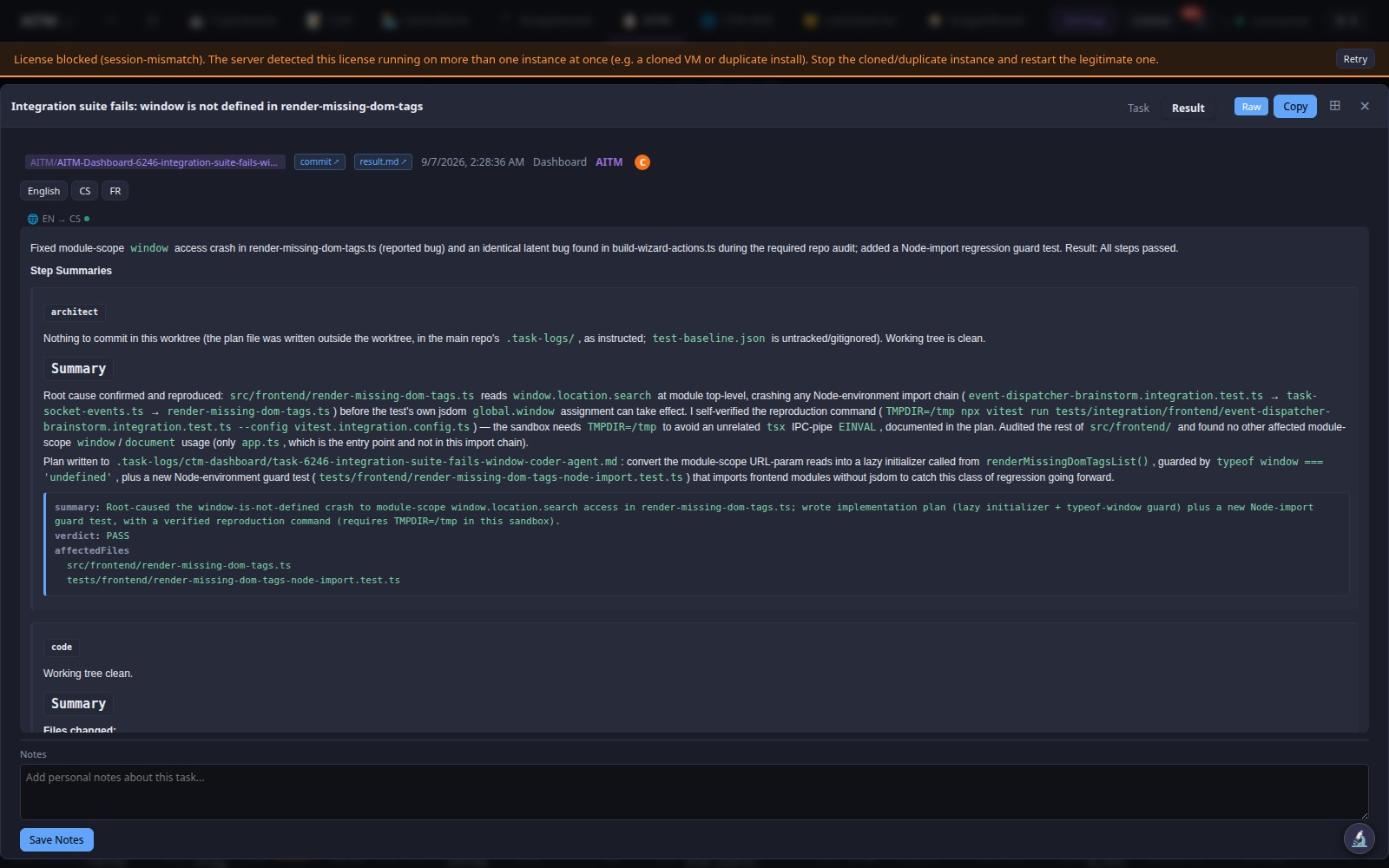
Task Result Window
The full record of a task opened from the Archive.

Archive Interface
Browse completed tasks; an archived task can be restored to the queue.
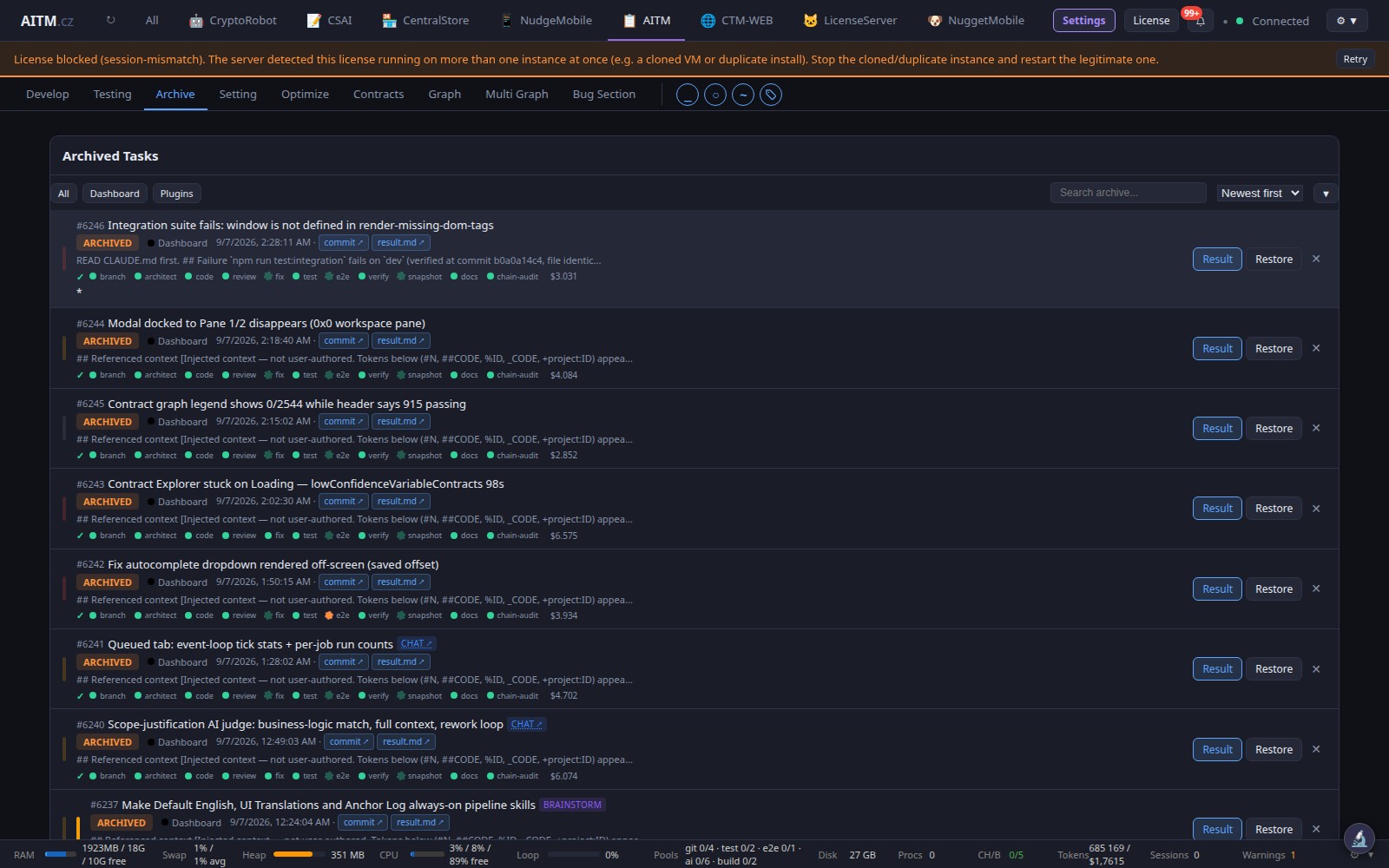
Archive View
Past tasks, most recent first, with search and filters.
✨ Prompt Optimization

Prompt Comparison View
The original prompt next to the AI-optimized prompt sent to the pipeline.
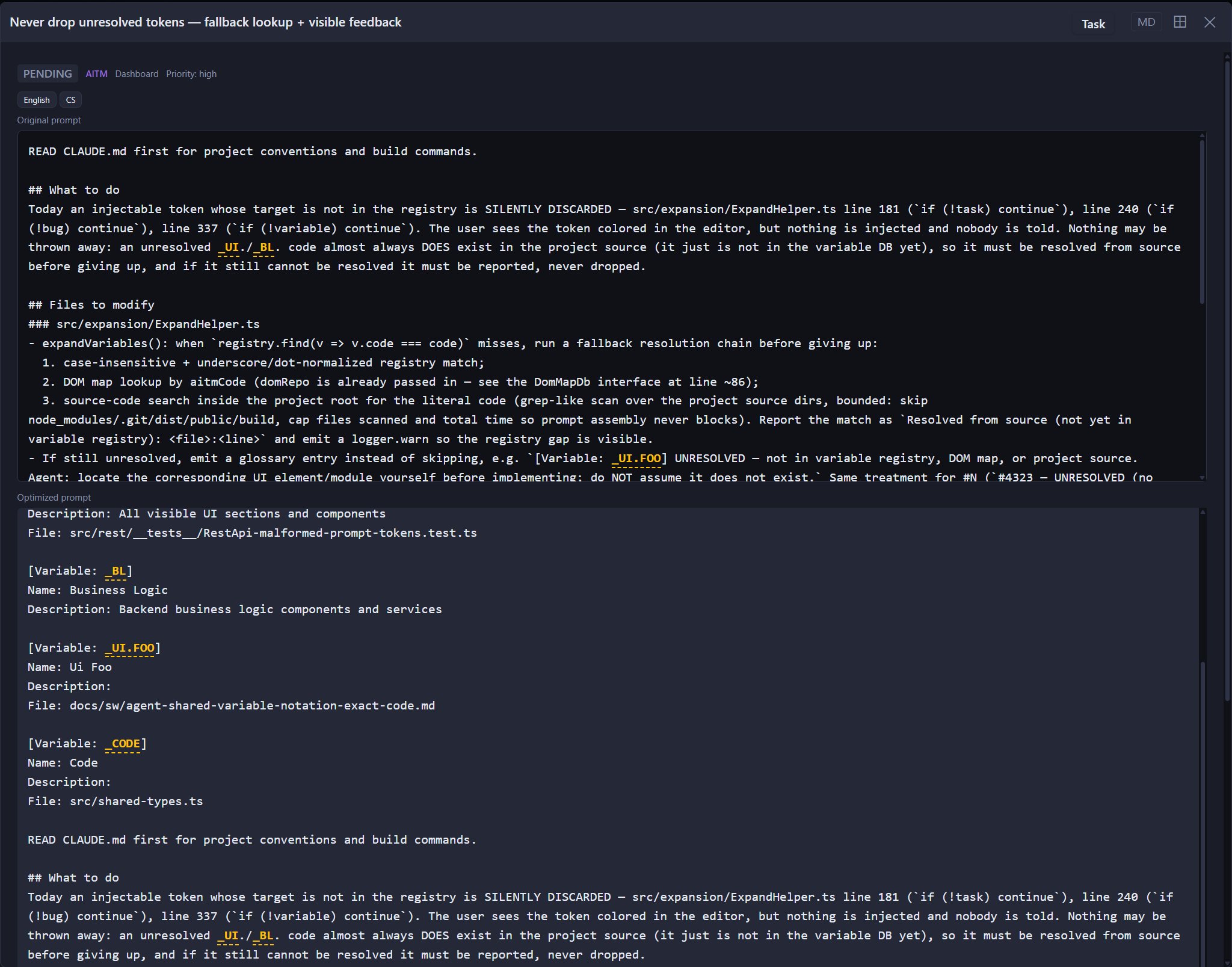
Task Detail — Original vs. Optimized Prompt
The task detail keeps both versions, original above optimized.
🧩 Contracts & App Flow
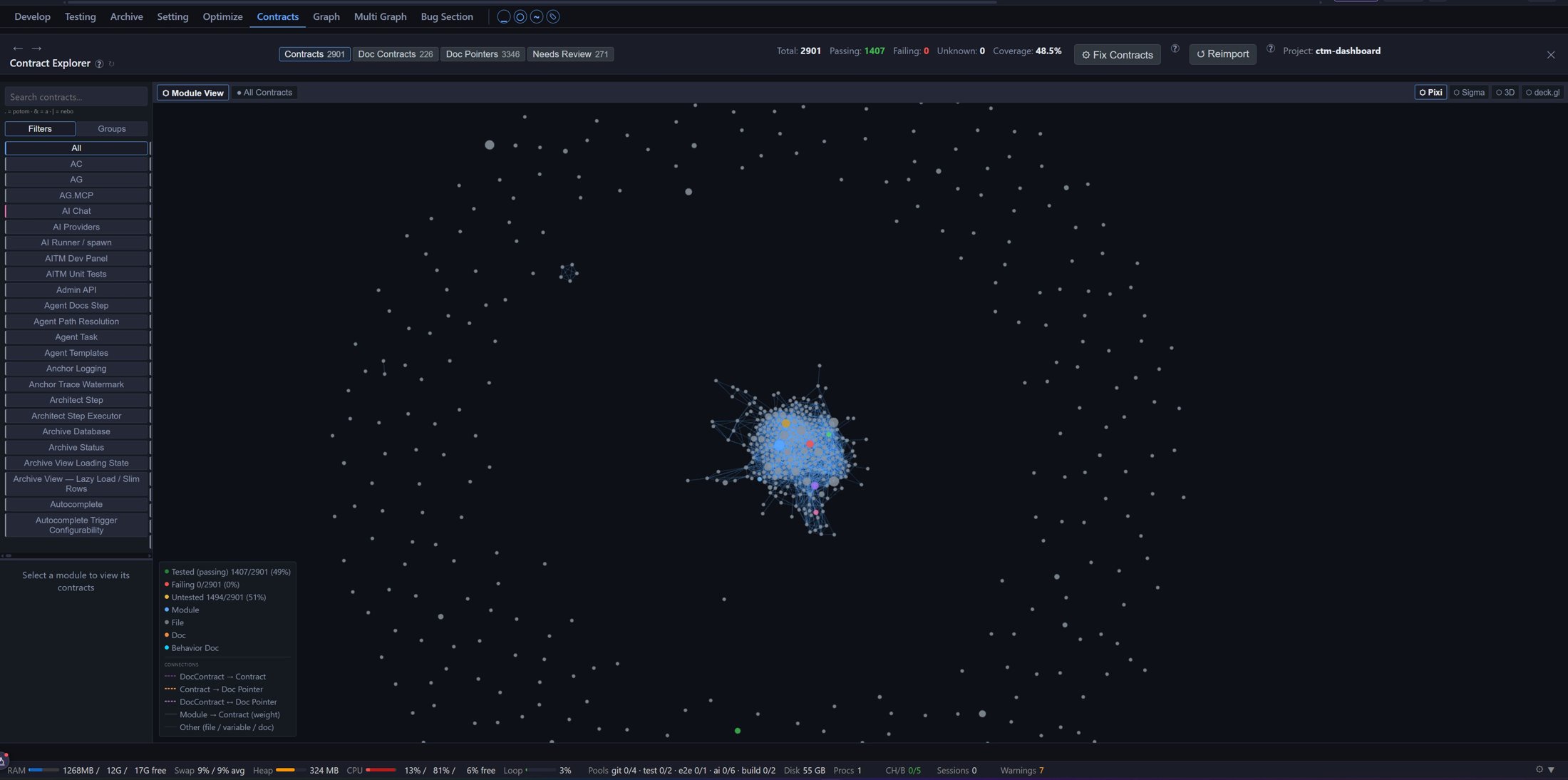
Contract Explorer — Module View
The map of a project's contracts grouped by module.
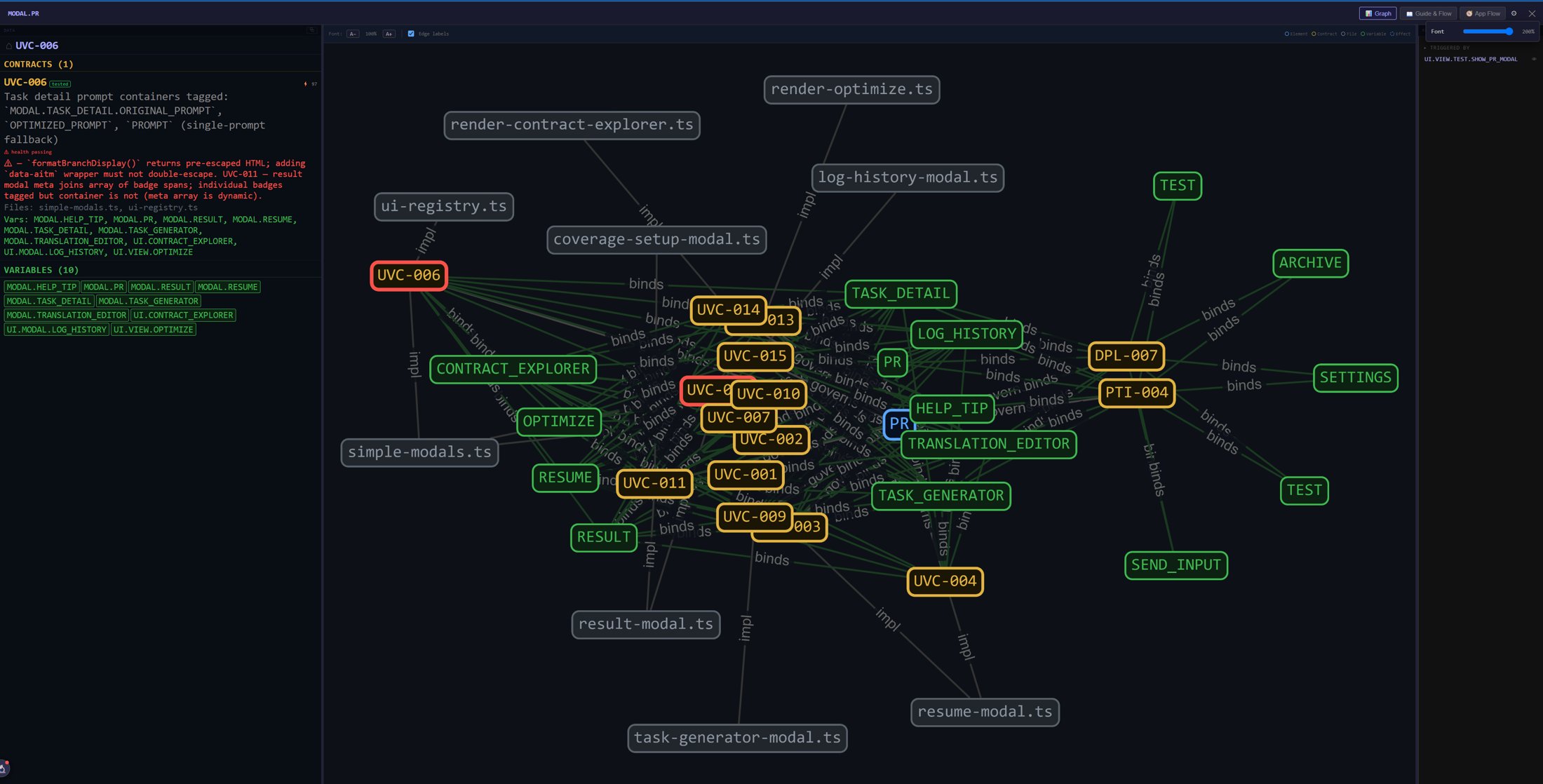
Contract Detail
Behavior, tests, files and variables of one contract.
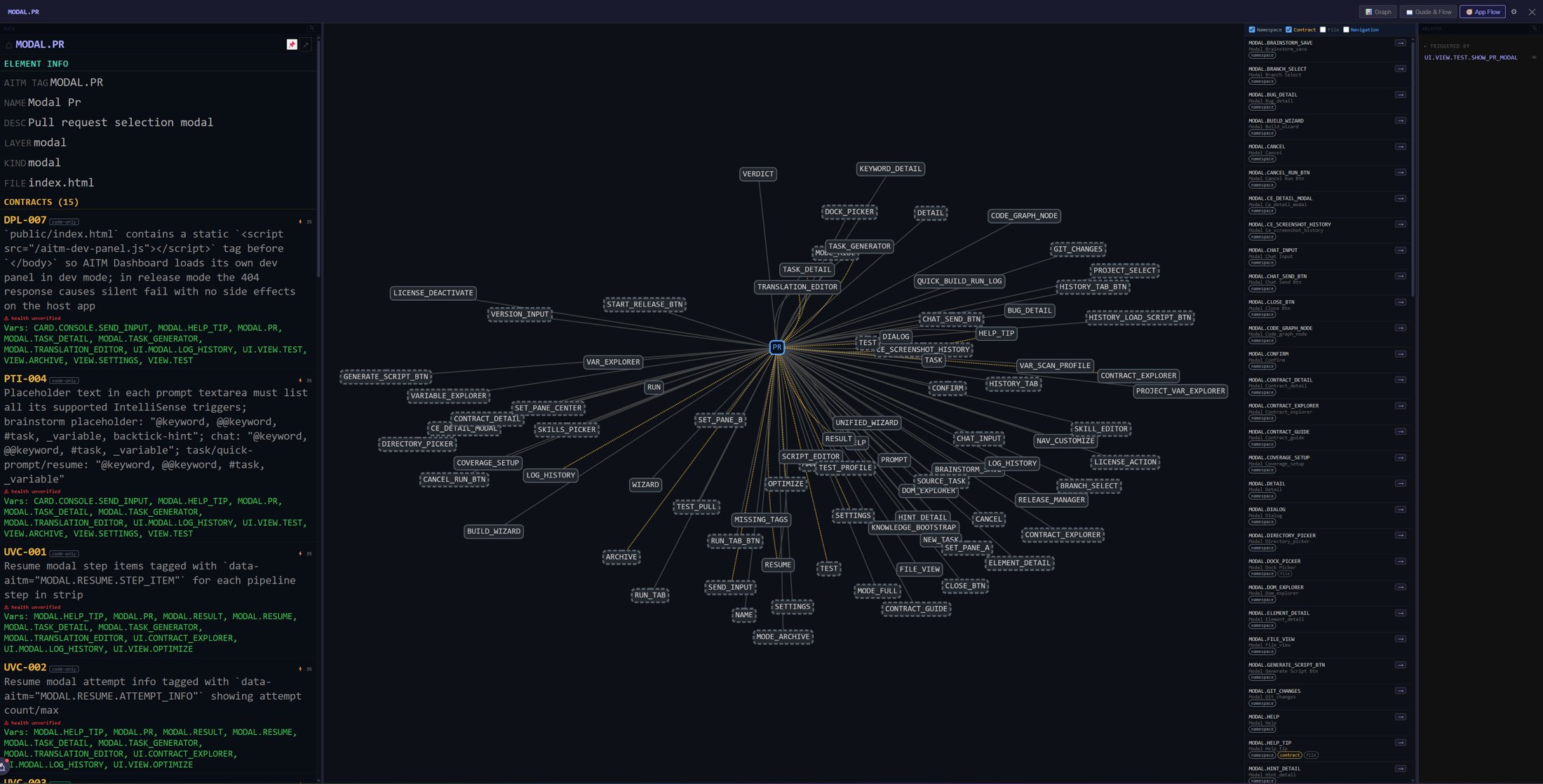
App Flow
The relationship map of one element.
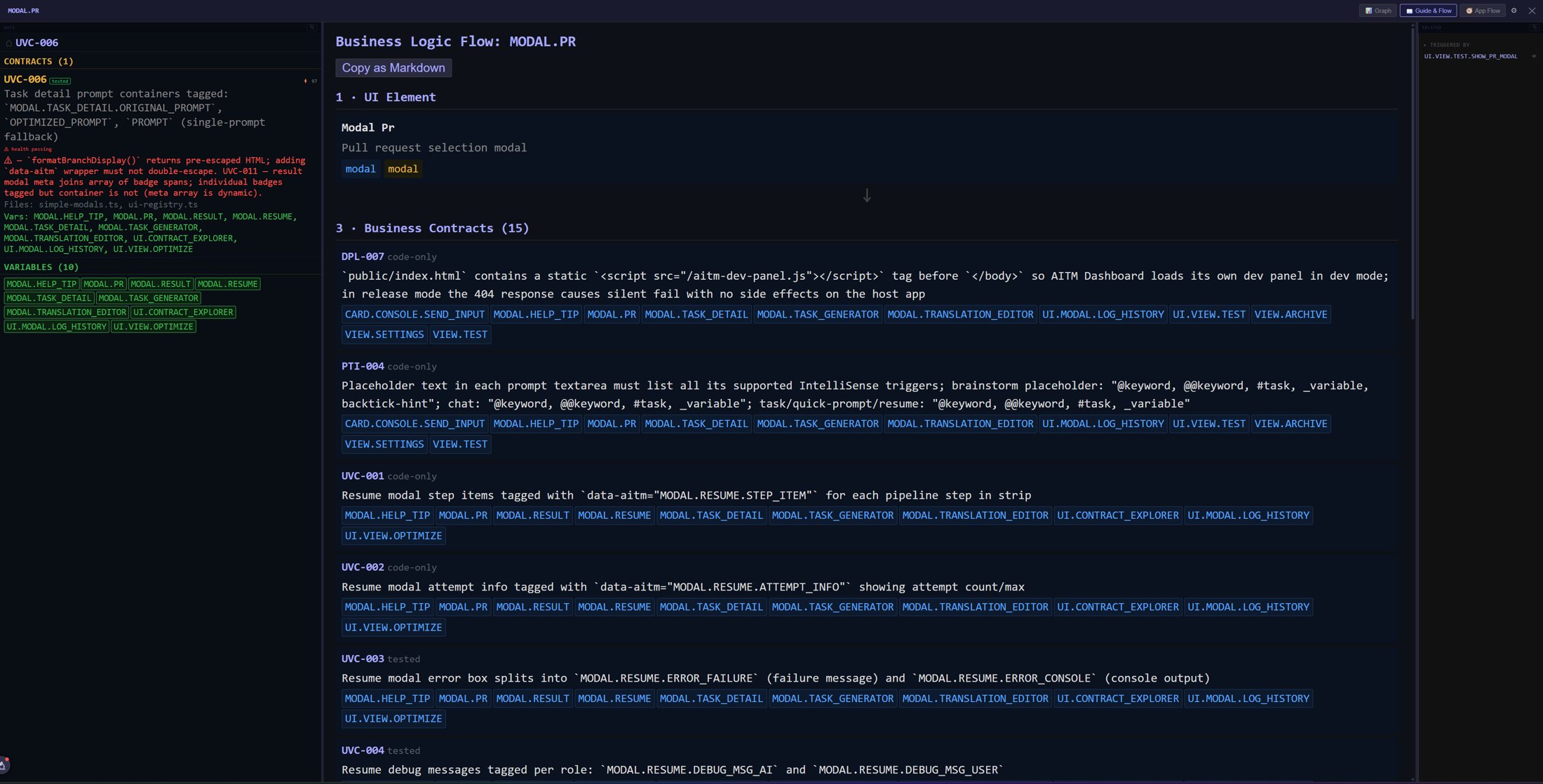
Guide & Flow — Business-Logic Flow
An element explained top-down through the business contracts behind it.
🛠️ Dev Panel
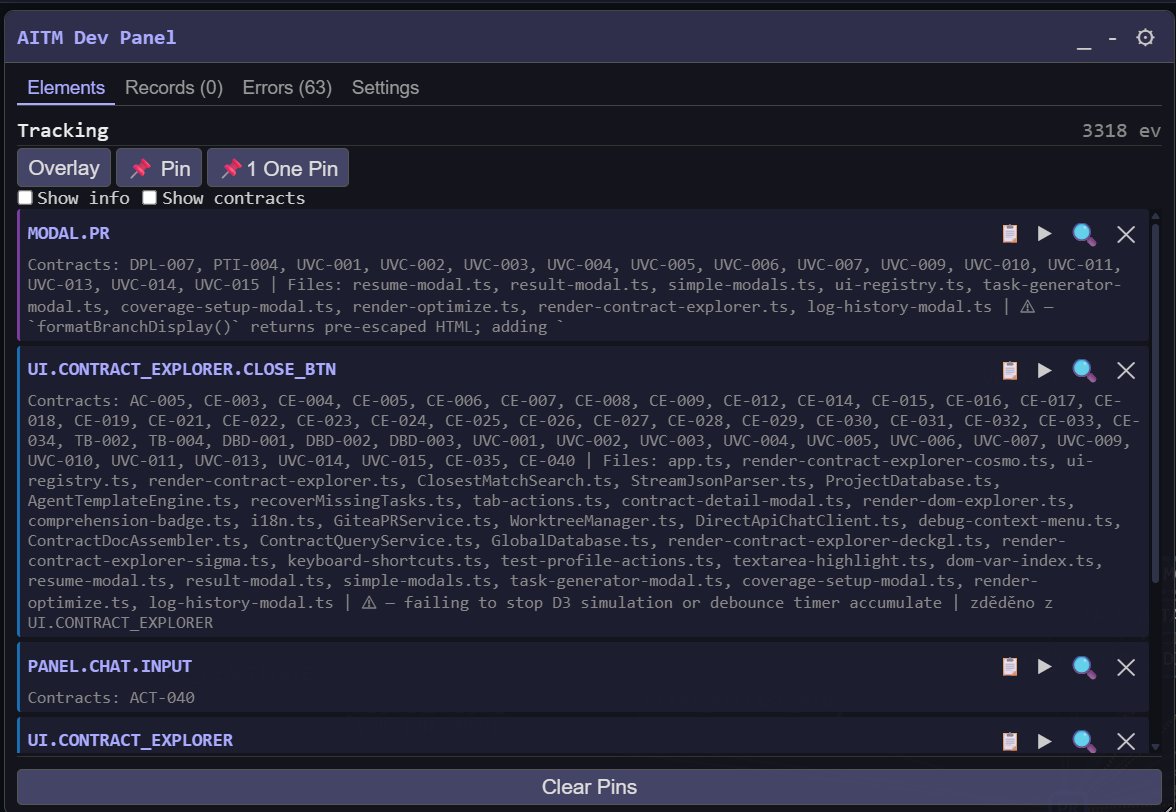
AITM Dev Panel
The floating toolbar injected into your running application: Elements, Records, Errors and Settings.